Install Instant COD securely.

This public guide explains the setup flow without asking for account passwords, verification codes, or private store credentials. Private connection details are entered only after you sign in to your Instant COD merchant account.

1. Configure your Shopify app

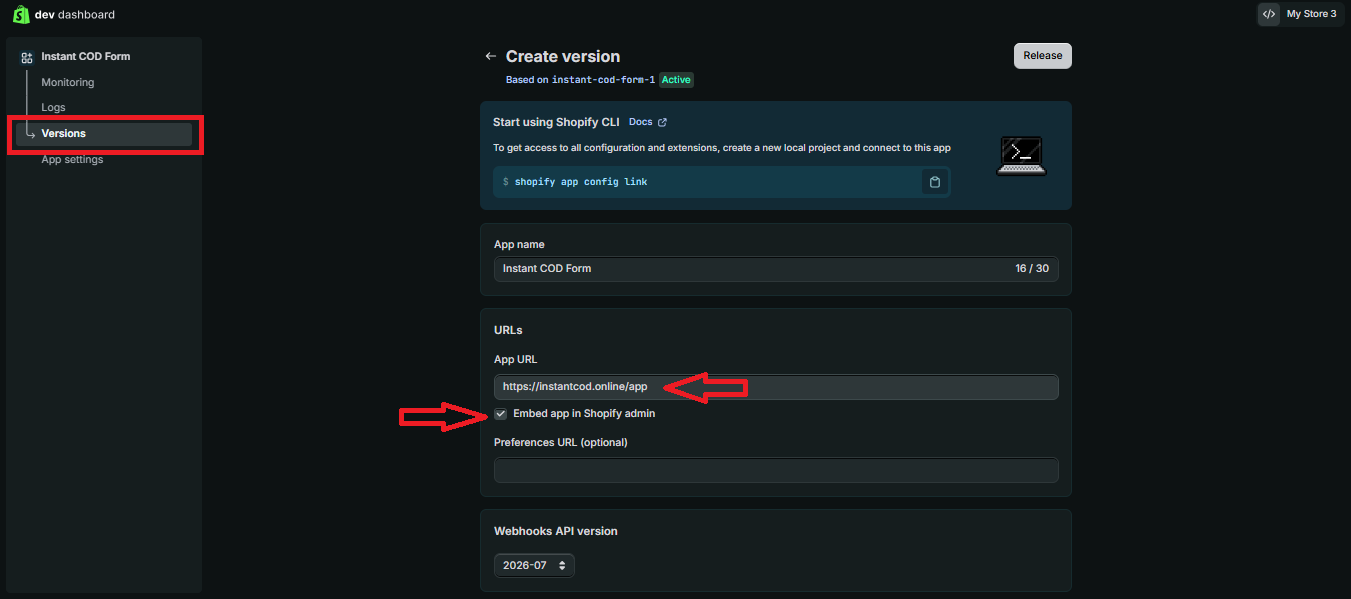
App URLhttps://instantcod.online/app
Embed appON
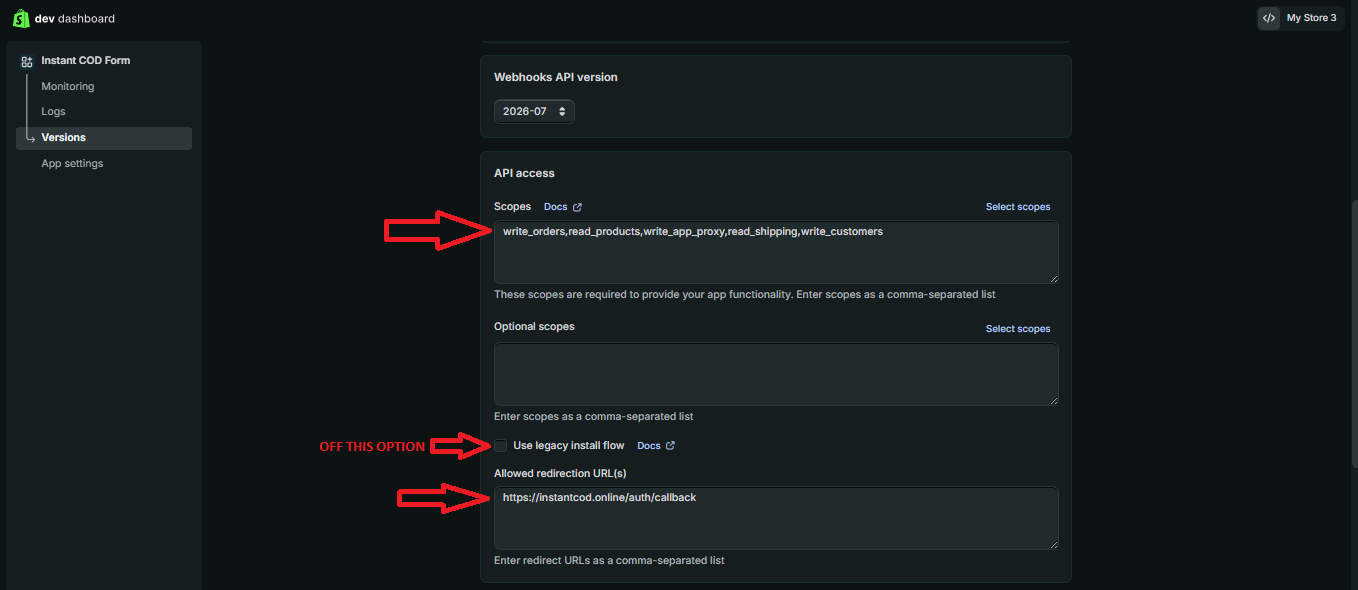
Allowed redirect URLhttps://instantcod.online/auth/callback
Required scopesread_orders,write_orders,read_products,write_app_proxy,read_shipping,read_customers,write_customers,read_draft_orders
Legacy install flowOFF

Save these values in the Shopify Dev Dashboard and release the app version for the store you control.

2. Configure the App Proxy

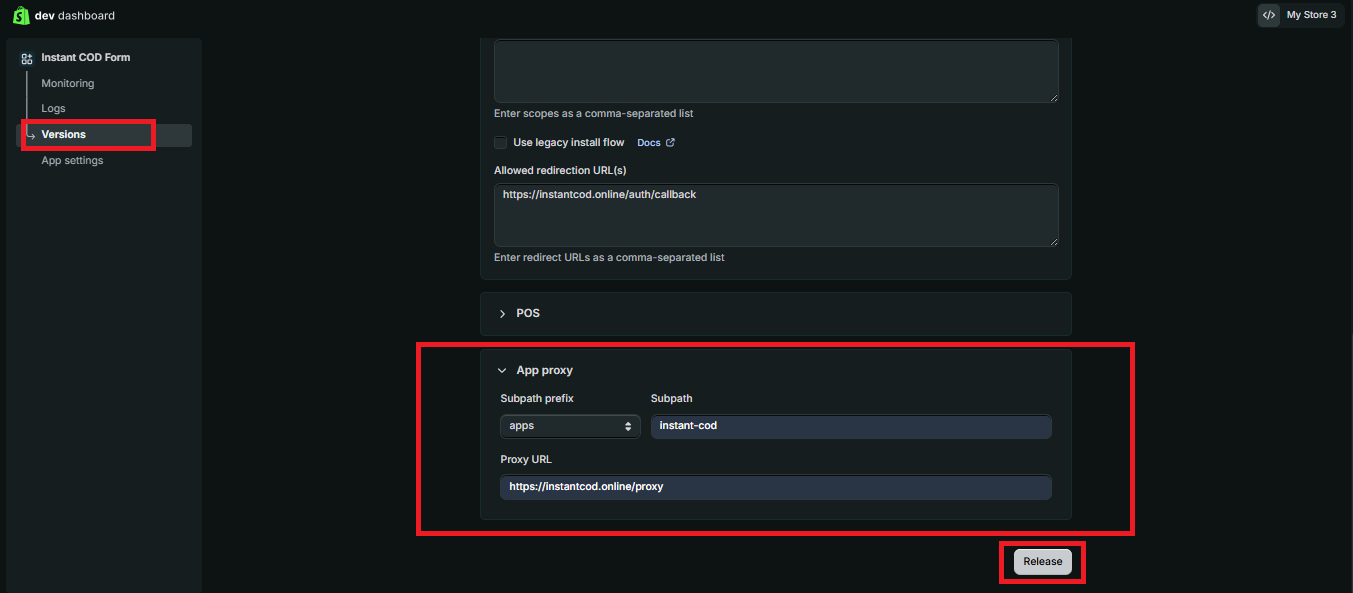
Prefixapps
Subpathinstant-cod
Proxy URLhttps://instantcod.online/proxy

Save the proxy configuration and release the version before connecting the store.

Step 1 of 7

Open the Shopify Dev Dashboard from your Shopify account menu.
Open Shopify Dev DashboardReference screenshot from Shopify Dev Dashboard. Shopify is a third-party platform; Instant COD is an independent service.
Step 2 of 7
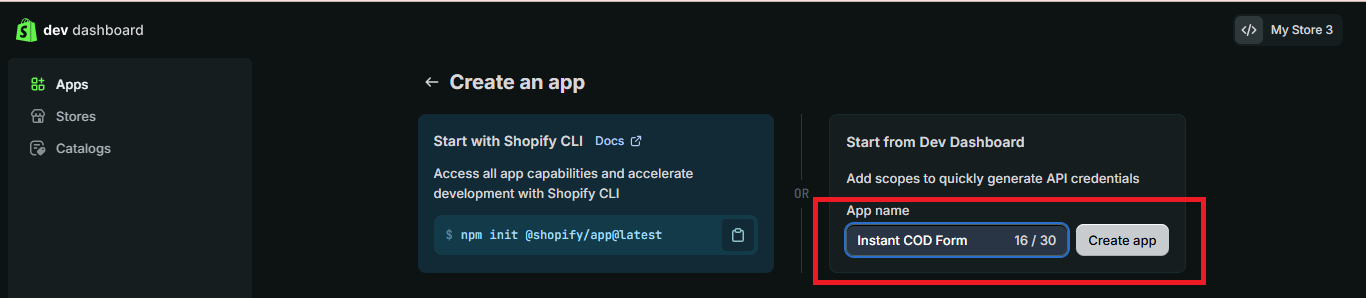
Open Apps and click Create app.
Create your appReference screenshot from Shopify Dev Dashboard. Shopify is a third-party platform; Instant COD is an independent service.
Step 3 of 7
Create the app from the Dev Dashboard and name it Instant COD Form.
Name the appReference screenshot from Shopify Dev Dashboard. Shopify is a third-party platform; Instant COD is an independent service.
Step 4 of 7
Set the App URL and enable Embed app in Shopify admin.
Set the App URLReference screenshot from Shopify Dev Dashboard. Shopify is a third-party platform; Instant COD is an independent service.
Step 5 of 7
Add the required scopes, turn off legacy install flow, and add the allowed redirect URL.
Scopes and redirect URLReference screenshot from Shopify Dev Dashboard. Shopify is a third-party platform; Instant COD is an independent service.
Step 6 of 7
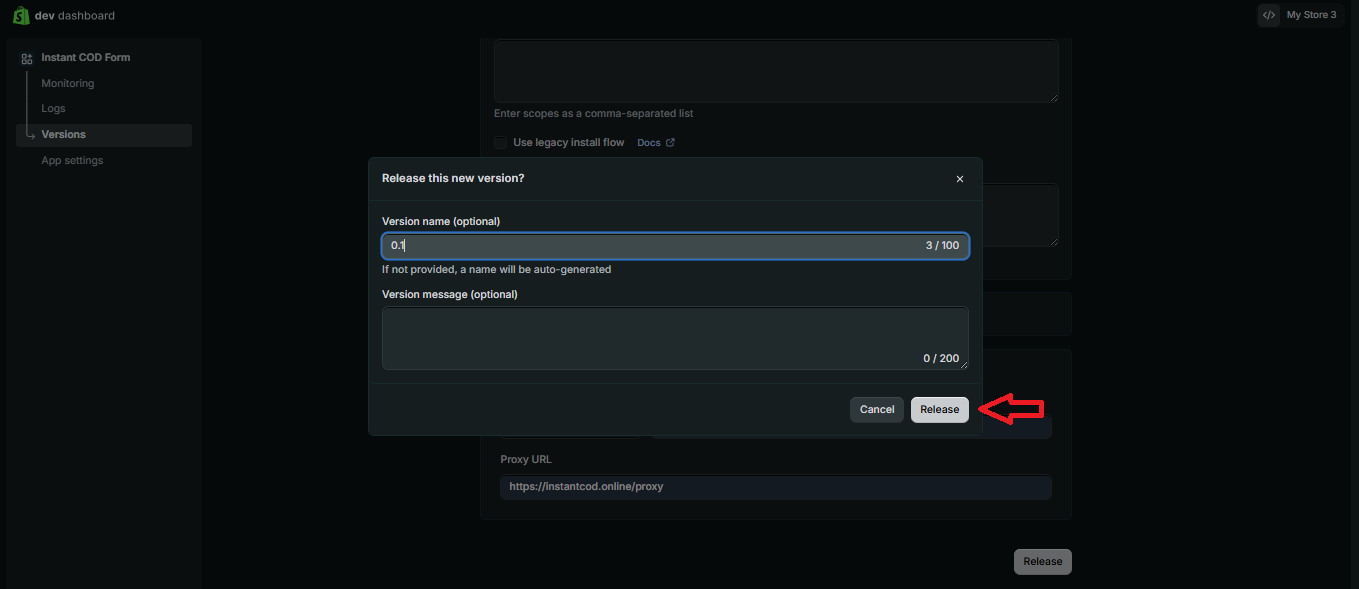
Configure the App proxy and release the app version.
Configure App ProxyReference screenshot from Shopify Dev Dashboard. Shopify is a third-party platform; Instant COD is an independent service.
Step 7 of 7
Confirm and release the new app version.
Release the versionReference screenshot from Shopify Dev Dashboard. Shopify is a third-party platform; Instant COD is an independent service.

3. Confirm the store you control

  1. Open Shopify Admin for the store you are adding.
  2. Confirm its permanent .myshopify.com domain.
  3. Use only a store and app project that you own or are authorized to administer.
  4. Do not enter a Shopify account password or two-factor authentication code on Instant COD.

4. Continue in the private merchant area

  1. Sign in to your Instant COD merchant account.
  2. Open Connect Store from the merchant area.
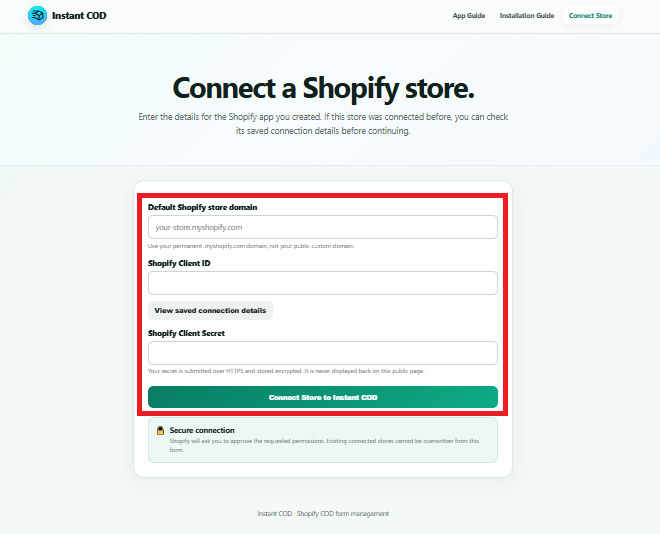
  3. Complete the private app-connection form using the values from your own Shopify Dev project.
  4. Shopify authorization is completed on the store's own myshopify.com admin domain.
Step 1 of 4
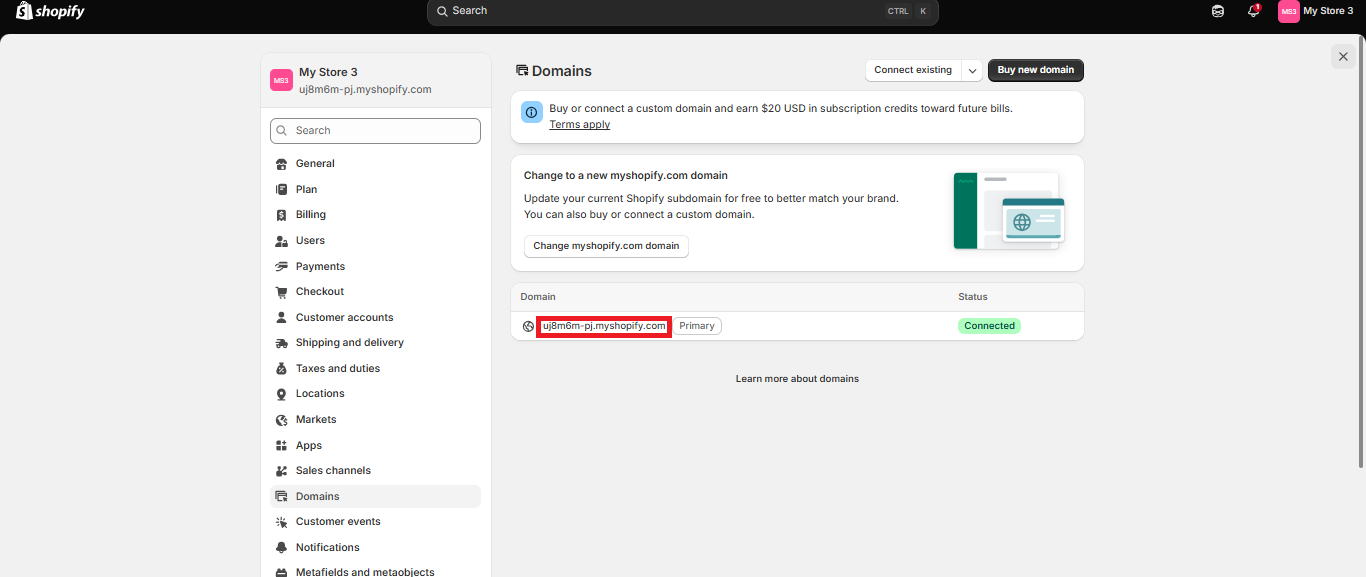
Find and copy your permanent .myshopify.com store domain.
Copy your Shopify domainReference screenshot from Shopify Dev Dashboard. Shopify is a third-party platform; Instant COD is an independent service.
Step 2 of 4
Enter the Required Values
Enter the Required ValuesReference screenshot from Shopify Dev Dashboard. Shopify is a third-party platform; Instant COD is an independent service.
Step 3 of 4
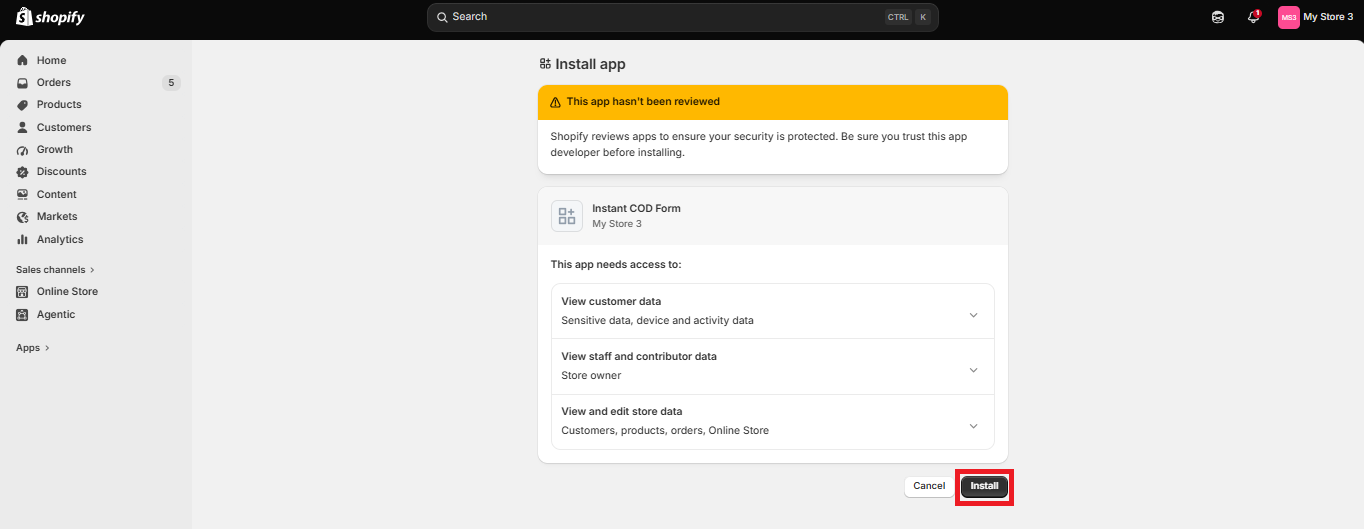
Approve the requested permissions and install the app in Shopify.
Install the appReference screenshot from Shopify Dev Dashboard. Shopify is a third-party platform; Instant COD is an independent service.
Step 4 of 4
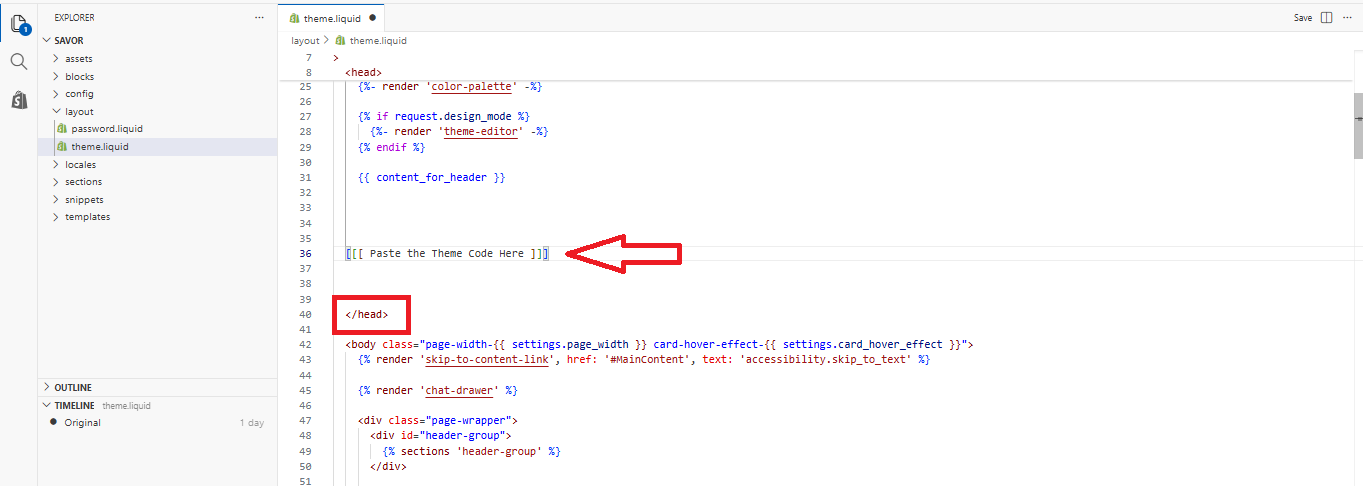
Paste the Code before /head in theme.liquid file
Paste the Code before /head in theme.liquid fileReference screenshot from Shopify Dev Dashboard. Shopify is a third-party platform; Instant COD is an independent service.
Security note: Instant COD is an independent service for Shopify merchants and is not Shopify. Instant COD will never ask for your Shopify Admin password, two-factor authentication code, recovery code, or card PIN. Only continue with a store and app project you are authorized to manage.

Sign in to continue private setup